Roku Remote Control & TV Cast
PrizePool StudiosTools
4.891.00 Reviews
- Version
- 1.3.2
- Installs
- 50.00K
- Age Rating
- Everyone
Screenshots
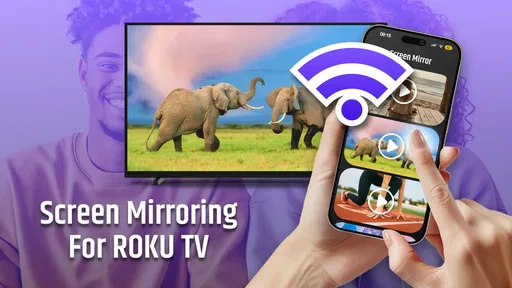
Our Review of Roku Remote Control & TV Cast
 Analysis by Appyee
I usually judge a remote-control app by a simple question: does it make controlling the TV easier than reaching for the physical remote? Roku Remote Control & TV Cast, from PrizePool Studios, is built around that everyday problem. It turns an Android phone or iPhone into a Wi-Fi remote for a Roku TV, adds casting for personal photos and videos, and makes text entry less awkward than using an on-screen keyboard.
That combination makes it more useful than a basic replacement remote, but it also means the app is not equally valuable for everyone. If you mainly need a spare controller, its phone-based convenience is appealing. If your priority is the broadest possible smart-TV compatibility, a platform-neutral remote may suit you better. I found the most important decision is not whether the app can replace a remote, but whether your home setup matches the way this particular tool works.
What I would check before choosing it
Before choosing, I’d check whether the app’s three jobs—Roku control, phone typing, and sharing personal media—match what I actually do, rather than assuming I need a full-time replacement remote. I’d also think about who shares the TV and whether keeping a phone nearby is practical, since that can matter as much as the feature set. That helps frame the next question: how those choices feel in an ordinary viewing routine.
Start with the Roku connection
The first practical requirement is that the phone and Roku TV can communicate over the same Wi-Fi environment. That sounds obvious, but it is the point where many remote apps become frustrating. A phone connected through mobile data, a guest network, or a different wireless band may not see the television even though both devices are in the same home. I would check the network before blaming the app if the TV does not appear immediately.
The app is listed for Android devices running version 7.0 or later, so it is aimed at a wide range of phones rather than only recent hardware. That is useful if you keep an older handset as a household remote. Still, operating-system compatibility does not guarantee a smooth experience on every device; screen size, Wi-Fi behavior, and the phone’s own power-saving settings can affect how quickly the remote responds.
I also recommend making sure the Roku TV is already configured and usable with its normal remote before relying on the phone app. A smartphone remote is excellent as a backup, but it is not a magic setup tool when the television has no network connection or is stuck during startup. This distinction matters if you are buying the app for a new TV rather than adding convenience to an existing one.
Decide which controls matter most
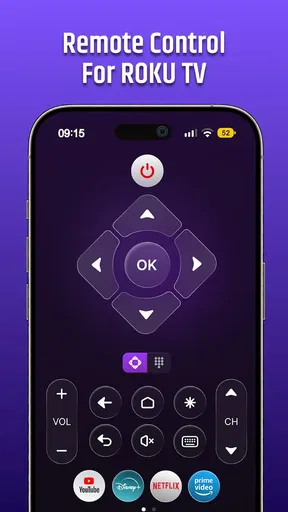
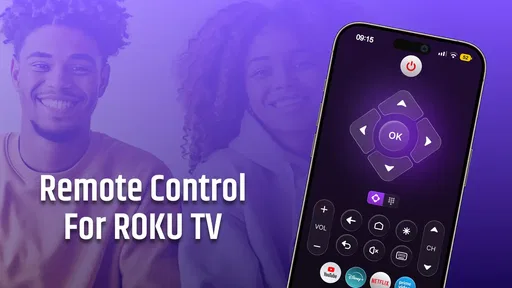
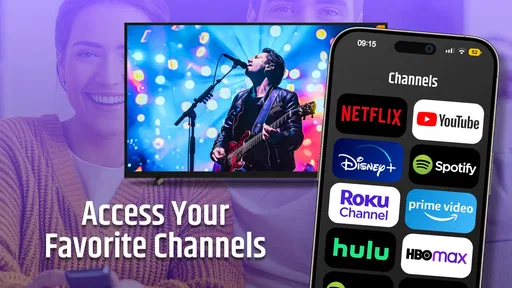
For basic viewing, the central controls are the reason to install it. You can navigate menus, move through channels or streaming services, and handle ordinary playback without searching under sofa cushions. The advantage becomes clearer when the physical remote is missing, has worn buttons, or is being used by someone else in the room.
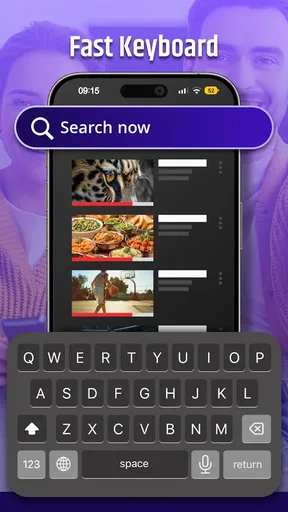
The typing feature is more important than it may sound. Searching for a film with a directional pad is slow, especially when the title includes a person’s name or a long phrase. Typing on the phone lets me use the device I already know, which makes searches and sign-in fields less tedious. It does not eliminate every step of using the TV, but it removes one of the most irritating parts of a traditional television interface.
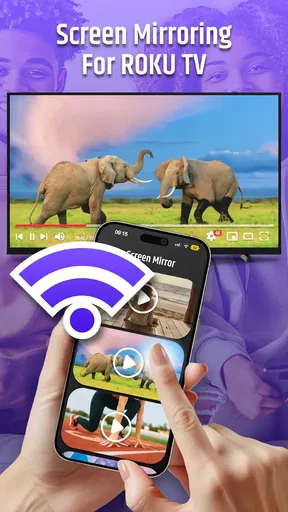
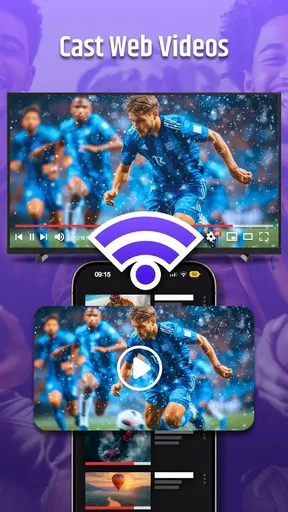
Casting photos and videos changes the app from a control substitute into a small sharing tool. I can imagine using it after a family event, when several people want to look at pictures on the larger screen without passing the phone around. The feature is most useful for personal media that is already on the phone; it should not be confused with a universal way to send every piece of content from every app to the TV.
Think about the people who will use it
This is a free tools app with an Everyone content rating, which makes the basic idea approachable for a household. The average rating is 4.8 from around 4.1 thousand ratings, and the app has passed 50 thousand installs. Those figures suggest that the concept is resonating with a meaningful group of users, although they do not tell me whether it will behave perfectly on a particular Roku setup.
I would recommend it most strongly to someone who already carries a phone from room to room and wants one device for remote control, text input, and occasional media sharing. It is also a sensible backup for a guest room or a TV that is frequently moved between users. A person who dislikes installing companion tools, keeping a phone nearby, or troubleshooting Wi-Fi discovery may prefer a physical replacement remote instead.
Use the free entry point carefully
The app is free to install, but in-app purchases range from $4.99 to $64.99 per item. That makes it important to look at the purchase screen before committing to anything. I would first test whether the core remote functions work with my TV and whether the layout feels comfortable. There is no reason to pay for extras before confirming that the basic connection is reliable in the room where the television sits.
That pricing range also changes how I compare it with a conventional remote. A one-time physical purchase may be easier to understand, while a free app can be cheaper at the start but less appealing if important conveniences are placed behind purchases. I would treat the free download as a trial of the workflow, not automatically as proof that the complete experience costs nothing.
How it performs in everyday use
In everyday use, I’d judge it by the small moments it is meant to improve: finding the TV, entering a search, and handing off a photo or video without disrupting the room. I’d pay attention to whether the phone remains convenient once notifications, battery, and other people’s access come into play. Those recurring trade-offs are what determine whether it becomes a useful household habit or just a backup I forget to open.
A realistic living-room routine
Imagine coming home while the physical Roku remote is buried in a bag. I open the app, connect to the TV, and use the phone to navigate to a streaming service. When I need to search, I type on the handset instead of pressing one virtual letter at a time. Later, someone wants to show vacation videos, so the phone becomes the source for sharing them on the larger display. That is a believable chain of tasks, and it explains why the app feels more complete than a simple button-for-button replacement.
The phone is especially handy when a household has several people with different viewing habits. One person can keep the physical remote while another uses the app to search or manage the TV. It can also help when the remote is temporarily unavailable rather than permanently lost. In those situations, the value comes from reducing interruptions, not from adding flashy features.
Why phone typing is a real advantage
On-screen television keyboards are designed for remote navigation, not speed. Even when the search term is short, moving across letters with directional buttons creates unnecessary pauses. A phone keyboard is familiar, and I can correct a spelling mistake without repeatedly moving through the TV interface.
There is a small trade-off: typing requires attention to the phone, while a physical remote can be used almost by feel. For quick volume changes or pausing a program, the traditional remote may still feel more immediate. I see the app’s keyboard as a strong reason to use it for searching and account fields, not necessarily as a replacement for every physical button press.
Making better use of casting
The casting option is most convincing when the content is personal and the audience is nearby. Before starting, I would organize the photos or videos I actually want to show rather than scrolling through a crowded camera roll in front of everyone. That small preparation makes the phone-to-TV handoff smoother and avoids the awkward pause of searching for the right file after the television is already waiting.
I would also keep the phone charged during a long viewing session. The TV may be displaying the media, but the handset remains part of the control path. This is one of the less obvious trade-offs of phone-based casting: the big screen is convenient, yet the phone is still the device I need to hold, navigate, and keep connected.
For a presentation that requires precise timing, advanced playback controls, or dependable performance in a busy network, I would use a purpose-built casting method when available. This app is better suited to casual sharing at home than to treating a phone as professional presentation equipment.
What can make the experience feel less smooth
Wireless remotes depend on more than the app itself. Network congestion, a sleeping TV, a phone that aggressively restricts background activity, or a router separating devices can all create delays. A physical remote has the advantage of being dedicated and predictable. If the app feels slow, I would first wake the TV, confirm both devices are on the same local network, and reopen the connection rather than repeatedly tapping controls.
There is also a human-factor issue. A phone can receive notifications, lock itself, or be picked up for another task while someone is watching. That interruption does not happen with a dedicated remote. I find this matters most during group viewing, where passing a phone around can be less comfortable than leaving a physical controller on the coffee table.
Keeping the app current
The current version is 1.3.2. I would keep it updated when possible, particularly if the app is being used as the household’s main backup remote. Wireless device discovery can be sensitive to changes in phone software and home-network behavior, so an older installation may not be the best reference point when troubleshooting.
At the same time, I would avoid updating immediately before an important event if the app is essential for casting family videos or controlling the TV. Testing the connection after an update is a sensible habit. It takes only a moment and confirms that the phone still finds the intended television before guests arrive.
Where this app wins against common alternatives
Compared with a basic physical replacement remote, this app wins on typing and media sharing. A physical remote is usually better for instant, tactile control, but it cannot match the convenience of entering a long search phrase on a phone. The app also avoids the need to keep a second plastic controller in a drawer, assuming the Wi-Fi connection is available.
Compared with a generic smart-TV remote app, its Roku focus is an advantage when Roku is the center of the setup. A focused tool can feel less confusing than an app trying to support many television brands and interfaces. The trade-off is obvious: if the household uses several TV platforms, a broader remote may reduce the number of apps installed, even if it offers a less tailored Roku experience.
Compared with the official remote solution associated with a television platform, the main question is workflow rather than brand loyalty. Some users will prefer an option integrated into their existing account or device ecosystem. Others will value a separate app that combines remote control, phone typing, and personal-media casting in one place. I would choose based on which tasks I actually perform, not simply on the name attached to the app.
When another option is the better fit
I would skip this app if the TV is regularly used where Wi-Fi is unreliable or unavailable. A physical remote is the safer choice for a cabin, a temporary setup, or a room where network access is deliberately restricted. I would also lean toward a physical controller for children who need simple buttons without access to the rest of a phone.
A multi-brand remote may be better for a home with Roku, another smart-TV platform, and separate streaming hardware. In that case, switching between dedicated apps can undermine the convenience the phone is supposed to provide. Likewise, users who want one controller for television, sound system, and other equipment should look at a broader universal-remote approach rather than expecting this Roku-focused tool to cover everything.
People who cast frequently from many different services should also compare the app with the casting controls already built into those services. A dedicated service may offer a more direct path for its own content. This app makes sense when the combination of Roku control and personal photos or videos is more valuable than having a specialist tool for every individual media source.
The real cost of switching
Moving from a physical remote to a phone app is not only a download decision. I have to change where I keep the controller, remember which phone is paired with the TV, and accept that another person may need to borrow the handset. For a single user, that adjustment is minor. For a family, it is worth deciding whether everyone will use the app or whether it will remain a backup for one person.
Switching from another remote app has a similar cost. I would need to reconnect the television, test navigation, check typing, and try casting before deleting the old solution. That short comparison is worthwhile because the best remote is the one that works when the physical controller is missing—not the one with the longest feature list.
Purchases deserve the same caution. Since the app can be installed free and offers items from $4.99 up to $64.99, I would use the no-cost starting point to judge connection quality and daily comfort. If a paid feature does not solve a problem I actually have, I would leave it alone. The app’s value should come from saving time and reducing hassle, not from collecting optional functions.
My recommendation for different users
For a Roku household that wants a convenient spare remote, I think this is a strong candidate. The ability to type searches on a phone is genuinely useful, and casting personal photos and videos gives the app a purpose beyond emergency replacement. Its free starting point makes it easy to test without immediately changing the way the whole household uses the TV.
For someone who watches television casually and always has the original remote nearby, the benefit is smaller. The phone controls may feel unnecessary for simple volume changes and playback. In that case, I would install it only if typing, remote backup, or personal-media sharing solves a specific annoyance.
My clearest advice is to test it in the exact room where the Roku TV is used. Confirm that the phone discovers the television, try a few navigation commands, enter a realistic search, and cast a short personal video. Those checks reveal more than a feature list because they show whether the app fits your network, your phone habits, and the people who share the TV.
My bottom line: choose Roku Remote Control & TV Cast when Roku control, phone typing, and casual photo or video sharing belong in the same routine. PrizePool Studios has created a practical tools app with a clear everyday use case, and its 4.8 average from around 4.1 thousand ratings reflects strong user approval. I would not treat it as a universal replacement for every remote or every casting method, but for the right Roku setup, it can turn a phone you already carry into a genuinely useful second controller.
Verdict
Strengths of Roku Remote Control & TV Cast
- Simple interface makes basic TV controls easy to find.
- Works as a convenient backup when the physical remote is missing.
- Cast support can make sharing compatible media more practical.
- Quick access to volume, playback, and navigation controls.
- Useful for controlling multiple Roku devices from one phone.
Limitations of Roku Remote Control & TV Cast
- Requires the phone and Roku device to use the same Wi-Fi network.
- Some casting features may depend on the app or media service used.
- Free versions may include ads or promotional interruptions.
- Phone calls and notifications can interrupt remote or casting sessions.
- Advanced TV functions may be unavailable on certain Roku models.
Other Releases by PrizePool Studios
View All
Logo Quiz - World Trivia Game
Trivia4.8

Who is it? Celeb Quiz Trivia
Trivia4.8

Flags Quiz - Guess The Flag
Trivia4.7

Guess it! Zoom Pic Trivia Game
Trivia4.7
Similar Picks in This Category
View All
Google LLC4.0

Gboard - the Google Keyboard
Google LLC4.5

Google Play services
Google LLC4.3

Google Play Store
Google LLC4.9

Files by Google
Google LLC4.5

SHAREit: Transfer, Share Files
Smart Media4U Technology Pte.Ltd.4.3
Frequently Asked Questions
What is Roku Remote Control & TV Cast, and what can it do?
Roku Remote Control & TV Cast is a mobile companion app designed to control compatible Roku streaming players and Roku TVs from an Android or iOS device. After connecting to the same Wi-Fi network, it can typically provide navigation buttons, playback controls, volume functions, keyboard input, and access to casting features. Available tools may vary depending on the phone, Roku model, and app version.
How do I connect the app to my Roku device?
To connect Roku Remote Control & TV Cast, your smartphone and Roku device generally need to be connected to the same wireless network. Open the app, allow any requested local-network permissions, and select the Roku device detected on your network. If it does not appear, check that the Roku is powered on, both devices use the same Wi-Fi band or network, and VPN or guest-network settings are not blocking communication.
Can I cast videos, photos, or music from my phone to Roku?
The app may allow you to cast supported photos, videos, music, or online content to a Roku device, but compatibility depends on the media format, the source website or application, and the Roku model. Some services require their own official casting feature or a separate Roku channel. Casting is also affected by network quality, and protected content may not be available through third-party casting tools.
Does Roku Remote Control & TV Cast work with every Roku TV and streaming player?
The application is intended for compatible Roku devices, but it should not be assumed to work identically with every model. Older Roku players, certain television brands, private networks, and devices with restricted discovery settings can cause connection or feature limitations. Before downloading, review the app-store compatibility information and confirm that your Roku device is updated and connected to a standard home Wi-Fi network.
Is Roku Remote Control & TV Cast free to use, and are there advertisements or subscriptions?
Many third-party Roku remote applications can be downloaded at no initial cost, but they may include advertisements, optional premium features, in-app purchases, or subscription plans. The exact pricing and limits can change between Android and iOS versions and with future updates. Check the current store listing carefully before starting a trial, especially if you only need basic remote-control functions.
